Innovate not imitate!

Innovate not imitate!
Interested in the latest Growth hacks?

Welcome to our blog

Interested in the latest Growth hacks?

Welcome to our blog!

We want to help you start/manage and grow your business using innovative strategies and implementation. We have a passion for helping businesses and companies of various sizes see the same success that we have achieved.

Our skillsets are wide and varied, from business strategy, marketing, to online strategy. An increasing number of companies are turning to the internet and online media as a means to maximising their marketing reach and exposure. This is special area of focus for us and we do more than simple SEO strategies.

See our website for more: www.innovatetoaccelerate.com

Wednesday, 9 May 2018

How to Discover and Monitor Bad Backlinks

Posted by rjonesx.

Identifying bad backlinks has become easier over the past few years with better tool sets, bigger link indexes, and increased knowledge, but for many in our industry it's still crudely implemented. While the ideal scenario would be to have a professional poring over your link profile and combing each link one-by-one for concerns, for many webmasters that's just too expensive (and, frankly, overkill).

I'm going to walk through a simple methodology using Link Explorer and Excel (although you could do this with Google Sheets just as easily) to combine together the power of Moz Link Explorer, Keyword Explorer Lists, and finally Link Lists to do a comprehensive link audit.

The basics

There are several components involved in determining whether a link is "bad" and should potentially be removed. Ultimately, we want to be able to measure the riskiness of the link (how likely is Google to flag the link as manipulative and how much do we depend on the link for value). Let me address three common factors used by SEOs to determine this score:

Trust metrics:

There are a handful of metrics in our industry that are readily available to help point out concerning backlinks. The two that come to mind most often are Moz Spam Score and Majestic Trust Flow (or, better yet, the difference between Citation Flow and Trust Flow). These two scores actually work quite differently. Moz's Spam Score predicts the likelihood a domain is banned or penalized based on certain site features. Majestic Trust Flow determines the trustworthiness of a domain or page based on the quality of links pointing to it. While calculated quite differently, the goal is to help webmasters identify which sites are trustworthy and which are not. However, while these are a good starting point, they aren't sufficient on their own to give you a clear picture of whether a link is good or bad.

Anchor text manipulation:

One of the first things an SEO learns is that using valuable anchor text can help increase your rankings. The very next thing they learn is that using valuable anchor text can bring on a penalty. The reason for this is pretty clear: the likelihood a webmaster will give you valuable anchor text out of the goodness of their heart is very rare, so over-optimization sticks out like a sore thumb. So, how do we measure anchor text manipulation? If we look at anchor text with our own eyes, this seems to be rather intuitive, but there's a better way to do it in an automated, at-scale fashion that will allow us to better judge links.

Low authority:

Finally, low-authority links — especially when you would expect higher authority based on the domain — are concerning. A good link should come from an internally well-linked page on a site. If the difference between the Domain Authority and Page Authority is very high, it can be a concern. It isn't a strong signal, but it is one worth looking at. This is especially obvious in certain types of spam, like paginated comment spam or forum profile spam.

So, let's jump into how we can pull together a quick backlink analysis taking into account these various features of a bad backlink profile. If you'd like to follow along with this tutorial, hop into Link Explorer in another tab:

Follow along with Link Explorer

Step 1: Get the backlink data

The first and easiest step is just to get your backlink data from Link Explorer's huge backlink index. With nearly 30 trillion links in our index, you can rest assured that we will find most of the bad backlinks with which you should be concerned. To begin, visit the Link Explorer > Inbound Links section and enter in the domain or page which you wish to analyze.

How to Find Bad Backlinks

Because we aren't concerned with nofollow links, you will want to set the "follow" filter so that we only export followed links. We also aren't concerned with deleted links, so we can set the Link Status to "Active."

How to Find Bad Backlinks

Once you have set these filters, hit the "Export" button. You will have a couple of choices. If your site has fewer than 1,000 backlinks, go ahead and choose the immediate download. However, if your link profile is larger, choose the largest setting and be patient for the download to be prepared. We can keep going with other steps of the project in the meantime, but you don't want to miss out on bad links, which means you need to export them all.

A lot of SEOs will stop at this point. With PA, DA, and Spam Score included in the standard export, you can do a damn good job of finding bad links. Link Explorer does all of that out-of-the-box for you. But for our purposes here, we wan't to go a step further and do "anchor text qualification." This is especially valuable for large link profiles.

Step 2: Get anchor text

Getting anchor text out of the new Link Explorer is incredibly simple. Just visit Link Explorer > Anchor Text and hit the Export button. No extra filters will be needed here.

How to Find Bad Backlinks

Step 3: Measure anchor text value

Now here is a quick trick where we can take advantage of Moz Keyword Explorer's Keyword Lists to find anchor text that appears to be manipulated. First, we want to remove some of the extraneous anchor text which we know absolutely won't be concerning, such as URLs as anchor text. This step isn't completely necessary, but will save you some some credits in Moz Keyword Explorer, so it might be worth it.

How to Find Bad Backlinks

After you've removed the extraneous anchor text, we'll just copy and paste our anchor text into a new keyword list for Keyword Explorer.

How to Find Bad Backlinks

By putting the anchor text into Keyword Explorer, we'll be able to sort anchor text by search volume. It isn't very common that anchor text happens to have a high search volume, but when webmasters are trying to manipulate search results they often use the keyword for which they'd like to rank in the anchor text. Thus, we can use the search volume of anchor text as a proxy for manipulated anchor text. In fact, when working with Remove'em before I joined Moz, we discovered the anchor text manipulation was the most predictive factor in link penalties.

Step 4: Merge, filter, sort, & model

We will now merge the data (backlinks export and keyword list export) to finally get that list of concerning backlinks. Let's start with the backlink export. We'll open it up in Excel and then remove duplicate domain-anchor text pairs.

I'll start by showing you a quick trick to extract out the domains from a long list of URLs. I copied the list of URLs from the first column to the last column in Excel, and then chose Data > Text to Columns > Delimited > Other > /. This will cause the URLs to be split into different columns wherever the slash occurs, leaving you with the 4th new column being just the domain names.

How to Find Bad Backlinks

Once you have completed this step, we are going to remove duplicate domain-anchor text pairs. Notice that we aren't going to limit ourselves to one link per domain, which is what many SEOs do. This would be a mistake, since there could be multiple concerning links on the site with different anchor text.

How to Find Bad Backlinks

After choosing Data > Remove Duplicates, I select the column of Anchor Text and the column of Domain. With the duplicates removed, we are now left with the links we want to judge as good or bad. We need one more thing, though. We need to merge in the search volume data we got from Keyword Explorer. Hit the export button on the keyword list you created from anchor text in Keyword Explorer:

How to Find Bad Backlinks

Open up the export and then copy and paste the data into a second sheet in Excel, next to the backlinks sheet you already created and filtered. In this case, I named the two sheets "Raw Data" and "Anchor Text Data":

How to Find Bad Backlinks

You'll then want to do a VLOOKUP on the backlinks spreadsheet to create a column with the search volume for the anchor text on each link. I've taken a screenshot of the VLOOKUP formula I used, but yours will look a little different depending upon the the names of the sheets and the exact columns you've created.

Excel formula: =IF(ISNA(VLOOKUP(C2,'Anchor Text Data'!$A$1:$I$402,3,FALSE)),0,VLOOKUP(C2,'Anchor Text Data'!$1:$I$402,3,FALSE))

=IF(ISNA(VLOOKUP(C2,'Anchor Text Data'!$A$1:$I$402,3,FALSE)),0,VLOOKUP(C2,'Anchor Text Data'!$1:$I$402,3,FALSE))

It looks a little complicated, but that's simply because I'm using two VLOOKUPs simultaneously to replace N/A results with the number 0. You can always manually put in 0 wherever N/A shows up.

Now it's time for the fun part: modeling. First, I recommend sorting by the volume column you just created just so you can see the most concerning anchor text at the top. It's amazing to see links with anchor text like "ring" or "jewelry" automatically populate at the top of the list, since they're also keywords with high search volume.

How to Find Bad Backlinks

Second, we'll create a new column with a formula that takes into account the quality of the link, the riskiness of the anchor text, and the Spam Score:

Excel formula: =D11+(F11-E11)+(LOG(G11+1)*10)+(LOG(O11+1)*10)

=D11+(F11-E11)+(LOG(G11+1)*10)+(LOG(O11+1)*10)

Let's break down that formula real quickly:

  • D11: This is simply the Spam Score
  • (F11-E11): This is the Domain Authority minus the Page Authority. (This is a bit debatable — some people might just prefer to choose 100-E11)
  • (Log(G11+1)*10): This is a fancy way of converting the number of times this anchor text link occurs into a consistent number for our equation. Without taking the log(), having a high number here could overcome the other signals.
  • (Log(O11+1)*10): This is a fancy way of converting the search volume to a number consistent for our equation. Without taking the log(), having a high search volume could also overcome other signals.

Once we run this equation and create a new column, we can sort by "Riskiness" and find the links with which we should be most concerned.

How to Find Bad Backlinks

As you can see, examples of comment spam and paid links popped to the top of the list because the formula gives a higher value to low-quality, spammy links with risky anchor text. But wait, there's more!

Step 5: Build a Link List

Link Explorer doesn't just leave you hanging after doing analysis. Our goal is to help you do SEO, not just analyze it. Your next step is to start a new Link List.

The Link List feature allows you to track whether certain links are alive. If you embark on a campaign to try and remove some of these spammier links, you can create a Link List and use it to monitor the status of those links. Just create a new list by naming it, adding your domain, and then copying and pasting the concerning links.

How to Find Bad Backlinks

You can now just monitor the Link List as you do your outreach to remove bad links. The Link List will track all the metrics, including whether the link has been removed.

How to Find Bad Backlinks

Wrapping up

Whether you want to do a cursory backlink audit by just looking at Spam Score and PA, or a deep-dive taking into account anchor text qualification, Link Explorer + Keyword Explorer and Link Lists make it possible. With our greatly improved backlink index, you can now rest assured that the data you need is right at your finger tips and, if you need to get down-and-dirty in Excel, you can readily export it to do deeper analysis.

Find your spammy links!

Good luck hunting bad backlinks!


Sign up for The Moz Top 10, a semimonthly mailer updating you on the top ten hottest pieces of SEO news, tips, and rad links uncovered by the Moz team. Think of it as your exclusive digest of stuff you don't have time to hunt down but want to read!


from The Moz Blog https://ift.tt/2K2Sr7i
via IFTTT

Tuesday, 8 May 2018

How to Optimize Your Google My Business Listing [Updated May 1, 2018]

Posted by sherrybonelli

Updated May 1, 2018

An important first step in any local SEO strategy is to claim and verify your local business’ Google My Business (GMB) listing. Getting on Google My Business can increase your chances of showing up in Google’s Local Pack, Local Finder, Google Maps, and organic rankings in general. Qualifying local businesses can claim this free listing on Google and include information about their company, like their address, phone number, business hours, and types of payments accepted.

Additionally, over the past several months, Google has added some great features to Google My Business that companies should take advantage of that enhances your Google My Business listing and helps to grab viewers’ attention — and can increase how you rank in local search results.

If you haven’t claimed and verified your Google My Business Listing yet, that’s the first step. To get started, visit https://www.google.com/business.

How to optimize your Google My Business listing

Many local businesses just claim their GMB listing and forget about it. What most businesses don’t realize is that there are a variety of other features Google gives you that you can use to optimize your Google My Business listing and several reasons why you should frequently check your business listing to ensure that its accuracy stays intact. Want to know more?

Complete all the information Google asks for

There are a variety of questions Google wants you to fill out to complete your Google My Business profile. When done, your listing will have valuable basic data that will make it easier for potential customers to find more information about your company. And if you don’t fill out that information, someone else could. Many business owners don’t realize that anyone can suggest a change (or "edit") to your business listing — and that includes your competitors.

When a searcher clicks on your GMB listing they see a "Suggest an edit" option:

How to optimize your Google My Business listing

When someone clicks on that option they can literally edit your Google My Business listing (and make some pretty dramatic changes, too):

How to optimize your Google My Business listing

And these aren’t just “suggested” edits — these user-generated changes can actually be made live on your listing without you even being notified. This is just one reason why it’s very important that you log in to your Google My Business dashboard regularly to ensure that no one has made any unwanted changes to your listing.

Here’s how:

If you log in to Google My Business, you can switch back to the “Classic” dashboard here:

How to optimize your Google My Business listing

In the classic dashboard, you might see “Google Updates” notifications.

If you see updates, these are changes that Google made to your business listing because either their algorithm found new information about your business (perhaps from another directory/citation site or a change they found on your Google Map) or a Google user submitted an edit that was published. (Yes, when people make “suggested edits,” they are not really “suggestions” -– the changes are often made live without you ever getting a notification or the opportunity to dispute the change!)

When you click on “Google Updates,” you'll see a box that allows you to “Review Updates.” It’s here where you're given the opportunity to remove incorrect information that may have been made by a troublesome Google user.

Now, Google supposedly sends out emails to the owner and others managing your Google My Business account when changes are made, but oftentimes those people never receive notifications about changes to their listing. So beware: you may (or may not) be notified by Google if changes are made to your listing. (For example, your business category could be changed from “criminal attorney” to the generic “lawyer” category, which could negatively impact your search rankings.) That’s why it’s extra important for you to log in and check your listing frequently (especially when, quite literally, some businesses have had their address and website URLs changed in their GMB listing by nefarious users.)

If you see a change that is incorrect and you have difficulty changing it (like a bogus review, for instance), create a new post explaining the situation in detail in the Google My Business forum and reach out to one of the Google Top Contributor volunteers for help.

Also, it’s important to realize that Google encourages people who are familiar with your business to answer questions, so that Google can learn more information about your company. To do this they simply click on the “Know this place? Answer quick questions” link.

How to optimize your Google My Business listing

They’ll then be prompted to answer some questions about your business:

How to optimize your Google My Business listing

If the person knows the answer to the question, they can answer and then they’ll typically be asked another question. If not, they can decline.

Now, some business owners have cried foul, saying that competitors or others with malicious intent can wreak havoc on their Google My Business listings with these features. However, Google’s philosophy is that this type of user-generated content helps to build a community, more fully completes a business’ profile, and allows Google to experiment with different search strategies.

Just remember, after you get your Google My Business listing verified, continue to check your listing regularly to be on the safe side.

Once you have your GMB listing verified, now is the time to optimize your listing. (This is where you have a greater chance to outdo your competition!)

Google My Business Posts

Google Posts are almost like “mini-ads” or “social media posts” that show up in Google search in your Google My Business listing (in the Knowledge Panel and on Google Maps).

How to optimize your Google My Business listing

To get started with Posts, log in to your GMB dashboard and you’ll see the Posts option on the left-hand side:

How to optimize your Google My Business listing

You can have fun with your Google My Business Posts by adding an image, a call-to-action (CTA), and even including a link to another page or website. If you’re using Yext, you can create GMB Posts directly from your Yext dashboard.

Not sure what type of Post you should make? Here are just a few Post ideas:

  • If you’re having an event (like a webinar or a seminar about your chiropractic practice) you can set up an event Post with a date and time, then add a link to the registration page.
  • Do you have a sale going on during a specific time? Create a “sale” event Post.
  • Does your latest blog post rock? Add a short description and link to the post on your blog.
  • New product you want to feature? Show a picture of this cool gadget and link to where people can make the purchase.
  • Want to spread holiday joy? Give potential customers a holiday message Post.

The possibilities with Posts are endless! Posts show up prominently in your business’ Knowledge Panel, so don’t miss this opportunity to stand out.

TIP: To grab a searcher’s attention, you want to include an image in your Post, but on Google Maps the Post image can get cut off. You might have to test a few Post image sizes to make sure it’s sized appropriately for Maps and the Knowledge Panel on desktop and mobile devices.

Want to have even MORE fun and potentially help your local SEO? Try adding relevant emojis to your Post. Google is beginning to index emoji-relevant search results. (In fact, you can now search Google by “tweeting” an emoji at it!) Additionally, people — especially younger people — are beginning to search (typically on their mobile devices) with emojis! So if a person is searching for “[pizza emoji] + nearby” and you own a local pizza restaurant and use the [pizza emoji] somewhere on your Google My Business listing — like in a Post with a special offer on a pizza order — you might have an SEO edge over the other pizzeria competitors in your city.

Not sure how to add emojis? If you’re using a Windows computer, you can add emojis by pressing the Windows key + the “.” OR “;” key at the same time on your keyboard. The emoji list of characters will appear and you can select the emoji you’d like to include (but don’t get carried away — one emoji is enough):

How to optimize your Google My Business listing

When people search using Chrome on their smartphones with an "emoji + near me," you might be surprised by what they find:

How to optimize your Google My Business listing

You got it! Google knew that I was looking for a great burger joint around my home! (Pretty cool, huh?)

Disclaimer: This strategy is still new and we’re not certain how adding emojis to your GMB listings impact these “emoji search results,” but if you have a related emoji that is pertinent to your business, you should definitely test it! (But don’t overdo the emojis — it gets obnoxious and doesn’t look professional if you go overboard.)

Posts stay live for seven days or “go dark” after the date of the event. (However, the old Posts still appear in your GMB listing — they’re just pushed down by the new Posts.)

How to optimize your Google My Business listing

If you’re forgetful, Google is great about sending you reminders when it’s time to create a new Post.

How to optimize your Google My Business listing

And remember, Posts show up prominently in mobile searches, so make your website stand out among search results by keeping your Posts “topped off.”

How to optimize your Google My Business listing

It’s important to note that at this time, hotels and B&Bs are not allowed to make Posts. That may change sometime in the future, so stay tuned!

Booking button feature

Google’s Booking button feature can really help your business stand out from the crowd. If you have any type of business that relies on customers making appointments and you’re using integrated scheduling software, people can now book an appointment with your business directly from your Google My Business listing. This can make it even easier to get new customers — they don’t have to leave Google to book an appointment with you!

How to optimize your Google My Business listing

If you have an account with one of Google’s supported scheduling providers, the booking button is automatically added to your Google My Business listing. Take advantage of this integrated Google My Business feature if you use the booking providers, it’ll make it super simple to get new clients or customers.

Messaging

Did you know that you customers — and potential customers — can send you text messages? This is a great way to connect directly with people interested in what you have to offer, and a great way to engage with people looking at your GMB listing (and you know that Google is always watching engagement.)

To get started with Messaging, log in to your GMB dashboard and click on “Messaging”:

How to optimize your Google My Business listing

You can then set up the message people will receive after they send you a message and your mobile phone number.

How to optimize your Google My Business listing

If you don’t want text messages sent to your personal phone number, you can download Google’s Allo app. When you set up your Allo account, use the same phone number connected to your Google My Business account. Now when someone messages you, the message will be sent to the Allo app instead of appearing alongside your personal text messages.

The Allo app is a great way to keep your personal and business text messages separate:

How to optimize your Google My Business listing

This feature is still in its infancy, though. Right now, messaging is only available to mobile web users and is not available to mobile app or desktop users. People also won’t see the Messaging option in the Knowledge Panel or on Google Maps.

The ONLY way someone can message your business is if they perform a mobile web search on Chrome. (I expect that Google will expand the Messaging feature once they work the kinks out.)

Questions & Answers

Questions & Answers is a great feature for Google local search. It’s very cool! Just like it sounds, Q&A allows people to ask questions about your business and you can answer those questions.

How to optimize your Google My Business listing

The Google My Business Questions & Answers feature is the perfect opportunity to hear directly from “the people” and you can respond to them. Win-win. However, according to a study done by Get Five Stars, 25 percent of locations on Google Maps have questions (and many of those questions are probably STILL unanswered).

Here are a few things to keep in mind about Questions & Answers:

  • On mobile devices, you can see, ask and answer questions on Google Maps on Android devices and when you search for your business on mobile browsers on both iPhone and Android devices. To use Google Maps on your Android device, download the Google Maps app and sign in with the email address you use for your GMB listing.

How to optimize your Google My Business listing

Ironically, you can’t see Questions and Answers on the Google My Business app.

  • No notifications of new questions show up in your GMB dashboard. To find out if you have new questions that need answering, you need to install Google Maps on your phone, log in, and check for questions/notifications. You can also go on a mobile browser, search for your business, and see if you have new questions that need to be answered.
  • Google has recently started sending out email notifications letting you know that a new question has been asked, but it’s possible that not everyone associated with your account receives these emails:

How to optimize your Google My Business listing

This email notification is a BIG improvement over the lack of notification we’ve experienced so far with Q&As.

One thing you should do is be proactive and create a Frequently Asked Questions list to preempt people’s GMB Q&As. Check with your sales reps and your customer service staff to identify the questions people most often ask, then put those Q&A questions on your GMB listing.

TIP: Google has said that upvoting questions can make them more visible. If someone has a particularly important question, go ahead and upvote it.

WARNING: It’s important to note that just like “Suggest an Edit” on GMB, anyone can answer questions asked of your business. Therefore, you want to keep an eye out and make sure you answer questions quickly and ensure that if someone else answers a question, that the answer is accurate. If you find that someone is abusing your GMB listing’s Q&A feature, reach out to the Google My Business support forums.

Still have questions about Google Questions & Answers? You can read Google’s Q&A guidelines.

Google My Business online reviews

Unlike Yelp, which vehemently discourages business owners to ask their customers for reviews, Google encourages business owners to ethically ask their customers or clients for online reviews. (Yelp takes it to the extreme, in my opinion.) Online reviews appear next to your listing in Google Maps and your business’ Knowledge Panel in search results. Online reviews can help your business stand out among a sea of search results.

Additionally, online reviews are known to impact search result rankings, consumer trust, and click-through rates. According to BrightLocal’s 2017 Consumer Review Survey:

  • 97% of consumers read online reviews for local businesses in 2017, with 12% looking for a local business online every day
  • 85% of consumers trust online reviews as much as personal recommendations
  • Positive reviews make 73% of consumers trust a local business more
  • 49% of consumers need at least a four-star rating before they choose to use a business
  • Responding to reviews is more important than ever, with 30% naming this as key when judging local businesses
  • 68% of consumers left a local business review when asked — with 74% having been asked for their feedback
  • 79% of consumers have read a fake review in the last year

If you follow Google’s guidelines for Google My Business reviews, you can ask your customers for reviews. (However, if you violate any of these policies, your reviews could be removed.)

Recently Google made some changes to their review guidelines. They have now changed it so that current and/or former employees can’t leave reviews. For business owners this is great news because it means that disgruntled and ex-employees with a grudge can no longer post bad reviews. Here is the new section that deals with Conflict of Interest:

How to optimize your Google My Business listing

Additionally, Google made some changes with regard to reputation marketing software. Reputation marketing software can help filter out people who were planning on leaving negative reviews so that they aren’t given the opportunity to leave that bad review online. (This is sometimes referred to as “review gating.”) Google wants to prevent that practice, so on April 12, 2018, Google updated their review policy to include information on this. In general, you don’t want to “Discourage or prohibit negative reviews or selectively solicit positive reviews from customers.”

Also, whatever you do, do not offer a bribe in exchange for a review. Not only does it go against Google’s terms, it goes against the laws of reviews in general: do you really want to bribe someone to leave you a good review — or do you want to earn it?

When customers leave reviews for you — good or bad — make sure you respond to them. Not only does it show that customer that you appreciate their feedback, it also shows potential customers that you care.

So what happens if you get a negative review? First, don’t freak out. Everybody has a bad day and most people recognize that. Also, if you have a troll that gave you a one-star review and left a nasty comment, most people with common sense recognize that review for what it is. It’s generally not worth stressing over.

TIP: Asking someone to leave a review on Google is very cumbersome. To give your customers a direct link to your Google My Business listing so they can leave a review online for you, read and follow the directions in this post on How to Create a Direct Review Link to Your Google My Business Listing.

To learn more about strategically getting more online reviews, check out this article from Moz.

Photos and videos

The Internet used to be all about text and information, but more and more the visual appeal of the Internet is what grabs people’s attention — and that means photos and videos. Videos are so hot that you don’t even need sound. Studies show that as much as 85% of Facebook videos are viewed with the sound off.

However, many business owners are still under the misperception that to get into videos (or even photography) you have to hire a professional video production company or studio. Not true. Some of the best photos and videos are done on the fly — and with a smartphone!

Adding photos of your business is a great way to humanize your brand and let your customers get a “behind-the-scenes” look at what your company is all about… AND your customers can post photos on your Google My Business listing, too! (Surprise!)

AGENCY TIP: If you’re optimizing Google My Business listings for your clients, you know how difficult it is to get pictures from them so you can add them to their GMB listing. (Your clients are busy and often hard to track down.) There’s a new tool called localPics that solves that problem. This tool makes it super simple to send your clients text message reminders that it’s time to upload pictures. The owner (or whoever the designated “photographer” is) simply takes pictures or goes into their phone’s photo gallery, selects the pictures they want to upload, and the pictures are automatically uploaded to their Google My Business listing! What could be easier?

How to optimize your Google My Business listing

The ability to add photos to your Google My Business listing has been around for a while, but adding videos is a relatively new feature that Google introduced. Instead of being afraid, get excited! You can now add a 30-second video about your company that will grab people’s attention on the most popular place people go to search and find information: Google!

To get started, log in to your Google My Business dashboard. You will either see the “Add Videos” image on the Overview tab:

How to optimize your Google My Business listing

Or you can also click on the blue + sign to add a video:

How to optimize your Google My Business listing

When you click on the “Add Video” button, you can either drag the video you want to upload or select the video from your computer.

How to optimize your Google My Business listing

It’s super simple!

Google states that it can take up to 24 hours for the video to display, but most videos show up after just a few minutes. The videos should be 30 seconds long, but we’ve uploaded longer videos just fine. (Keep in mind that people have short attention spans, so don’t overdo it with videos that are too long — 30 seconds is just about right!)

Now, for you marketers out there that are salivating thinking of the great marketing and promotional videos you can upload, hold on for just a moment. Make sure your videos are taken at the place of business and are of people that work at your business or directly pertain to your business. (Google My Business is not the place for stock photos and marketing or promotional videos.) Google can remove the videos if the primary subject of the content is not related to the business location.

Owners who upload videos will be shown in the “By Owner” tab. When customers or clients upload videos, those videos will appear in the “Customer” tab. ALL of the videos will be displayed in the “Video” tab.

Google has given us some general Google My Business Video Guidelines to follow:

  • Duration: Up to 30 seconds long
  • File Size: Up to 100 MB
  • Resolution: 720p or higher

As a bonus, once you have two or more videos on your GMB listing, you’ll get a Videos subtab that shows up on mobile devices!

Business descriptions

Good news! Google now allows business owners to include a business description on your Google My Business listing. (And it’s about time!) Google recently made this announcement via Twitter and business owners were thrilled.

How to optimize your Google My Business listing

As usual, Google has provided us with some guidelines to follow: Google Business Description Guidelines. It’s important you adhere to these rules because Google does review your business Description.

How to optimize your Google My Business listing

You’re allowed 750 characters in your business description, but only 250 characters show up before they get cut off in the Knowledge Panel. So you want to make sure that you carefully create your business description and put the most important information and keywords — including your city — towards the front of the description.

Google really does review your business description to make sure people aren’t being deceptive or are spamming, so be sure to follow these guidelines:

How to optimize your Google My Business listing

You only have 750 characters (and only 250 of those show up in the company’s Knowledge Panel), so you want to make sure that every character counts.

On a desktop computer, the business description appears in the Knowledge Panel towards the bottom, below your reviews. (It’d be great if Google would bump the business description up towards the top of the Knowledge Panel where it should be… Let’s hope they move it there soon!)

How to optimize your Google My Business listing

On a mobile device, you can only see a business’ description if you click on the About tab:

How to optimize your Google My Business listing

Services/Menus

If you sell services, like a spa, nail salon, hair salon, copying company, or even a holistic center, and have a “menu” of services, the new Services list in Google My Business is a great new addition. This feature is only available for food and drink, health, beauty, and other services businesses that don’t have a third-party “menu” link.

The Services list allows you to categorize and list out all your services (or food items) and prices so that potential customers can easily see what you have to offer.

This list itemizes out each service (or food item) you offer. To get started, log in to your Google My Business listing and click on Info:

How to optimize your Google My Business listing

Then scroll down and you will see the “Services” section where you can Add or edit your items:

How to optimize your Google My Business listing

This is where you can create categories, add items, and you can also add a description of each item (if you want to):

How to optimize your Google My Business listing

If you own a service business with set prices, I’d highly recommend you include your list of services and make sure you update these services and prices if things change.


Get more out of your GMB listing

Google is always looking at the engagement searchers and you, as the owner, are having with your Google My Business listing. The more interaction, the better your chances of ranking higher in the local three-pack and organic rankings in general. That means you need to keep optimizing your Google My Business listing.

As new features come out, plan on using them to keep your GMB listing fully optimized.

TECHIE TIP: If you’re managing multiple listings or franchises, you can use Google’s API v4.1 to more easily add Google My Business descriptions and Offer Posts. And if you’re really techie, you can even add “customer media endpoints” that allow users to retrieve photos and videos uploaded by customers at their business (normally GMB users aren’t notified of photo and video uploads).

Google has even introduced a new notification that alerts users who have opted in to receive alerts about newly posted media on their Google My Business Locations. Wow! (If you have someone on your team that can code, you’re at an advantage!)

Hopefully these features have given you a new reason to login to your Google My Business account and get busy! If you have any other questions about optimizing your GMB listing, let me know in the comments.


Sign up for The Moz Top 10, a semimonthly mailer updating you on the top ten hottest pieces of SEO news, tips, and rad links uncovered by the Moz team. Think of it as your exclusive digest of stuff you don't have time to hunt down but want to read!


from The Moz Blog https://ift.tt/2EIQvyQ
via IFTTT

SEO strategies and keyword rankings: mobile versus desktop

As if we didn’t already have enough to think about in any given SEO campaign, it is now imperative to separate and refine your approaches to mobile and desktop search.

While mobile has become hugely significant over the last couple of years, this shouldn’t be to the neglect of desktop. Although SEO for mobile and desktop follow the same basic principles and best practices, there are nuances and discrepancies that need to be factored in to your overall strategy.

Part of this is the keyword rankings: you won’t ever know how to adapt your strategies if you’re not tracking the rankings separately for each. Research from BrightEdge found that 79% of listings have a different rank on mobile devices compared with desktop, and the top-ranking result for a query is different on desktop and mobile 35% of the time. These are statistics that simply cannot be ignored.

Why do they do differ?

Before delving into how to compare keyword rankings on mobile and desktop, it’s first important to acknowledge the why and the what: why they are different and what it means for your SEO strategy.

It’s paramount to understand that desktop and mobile searches use different algorithms. Ultimately, Google wants to provide the best user experience for searchers, whatever device they are using. This means creating a bespoke device-tailored experience and in order to do that, we need to delve deeper into user intent.

It’s all about user intent

The crux of the mobile versus desktop conundrum is that user intent tends to differ for each device. This is particularly important when considering how far along the funnel a user is. It’s a generalization, but overall mobile users are often closer to the transactional phase, while desktop users are usually closer to the informational phase.

For example, we can better understand user intent on mobile by understanding the prevalence of local search. If a user is searching for a product or service on mobile, it is likely to be local. In contrast, users searching for a product or service on desktop are more likely to be browsing non-location-specific ecommerce sites.

Let’s also consider the types of conversions likely to occur on each device, in terms of getting in touch. Users on mobile are for more likely to call, by simply tapping the number which appears in the local map pack section. Alternatively, desktop users would be more inclined to type an email or submit a contact form.

What on earth is a micro-moment?

To better understand the different ways in which consumers behave, it may help to spend a little time familiarizing yourself with micro-moments. These refer to Google’s ability to determine a searcher’s most likely intent, and is particularly important for mobile users, when a consumer often needs to take immediate action.

For example, if a user is searching for a local product or service, the local map pack will appear, but if they are searching for information then the quick answer box will appear. These micro-moments therefore have a significant impact on the way the SERPs are constructed.

Once you’ve understood the user intent of a given searcher, you can ensure that you are providing content for both mobile and desktop users. However, it’s worth bearing in mind that content with longer word counts continues to perform well on mobile, despite the general consensus that people on mobile simply can’t be bothered to consume long form content. This harks back to Google’s prioritization of high quality content. Besides, anybody who has a long train commute into work will understand the need for a nice, long article to read on mobile.

Rankings tools

With that context, we can now return to the matter at hand: rankings. Of course, you could record the rankings for both desktop and mobile the old-fashioned, manual way, but who has time for that? In short, any good SEO tool worth its salt will enable you to track both desktop and mobile rankings separately. Here are some favorites:

  • SEMRush is a personal favorite among the plethora of fancy SEO tools. SEMRush provides a comprehensive breakdown of mobile vs desktop results (as well as tablet if you really want to geek out) and displays the percentage of mobile-friendly results for your domain.
  • SearchMetrics offers Desktop vs. Mobile Visibility metrics, detailing individual scores for desktop and mobile, as well as overlap metrics which show how many keyword search results appear in exactly the same position for both. You can also drill down further to view how a website performs with regard to localized results.
  • Google Search Console. Don’t have access to any of the above tools? Don’t worry as you can still rely on the trusty Google Search Console. When looking at your search analytics, filter devices by comparing mobile and desktop. Even if you do have access to an SEO tool that allows you to do comparison analysis, it’s definitely still worth checking in on your Search Console insights.

Rankings are only part of the picture

It’s important to remember that rankings are only a tiny part of the picture; it’s essential to take a more holistic approach to the mobile vs desktop issue. This means taking the time to dig around Google Analytics and unearth the data and meaning beyond the vanity metrics.

You may have higher rankings for mobile, but those users might be bouncing more regularly. Is this a reflection of the user intent or is it a poor user experience? Does higher rankings for one device correlate to higher conversions? If not, then you need to consider the reasons for this. There’s no one-size-fits-all answer, so you must take a tailored approach to your strategy.

Quick tips for differentiating your strategies

You’ve got your mobile and desktop rankings sorted. Now you need to create or amend your strategies for both devices. Here are some quick tips to do so:

  • Separate mobile and desktop-specific search terms in your keyword research
  • Factor in voice search for mobile devices
  • Consider implementing Accelerated Mobile Pages where appropriate
  • Carry out a mobile SEO audit on your site
  • Include mobile vs desktop into your tracking and reporting, going beyond the rankings
  • Revisit your content strategy to ensure you are factoring in both mobile and desktop optimized content – cater for both types of user.

In short, tracking your keywords on mobile and desktop is absolutely essential for both reporting accuracy and supporting separate SEO strategies for each device. But don’t stop there; it’s more important to understand why the rankings differ and how you can use that information to refine your SEO strategies.


from SEO – Search Engine Watch https://ift.tt/2wtWuHw
via IFTTT

Monday, 7 May 2018

Will ASOS’ visual search tool revolutionize the retail industry?

In 2017, ASOS introduced visual search on iOS, as a way of making product discovery easier and more interesting for their users. A year on, the Style Match tool, which trawls through an 85,000+ product inventory before matching products to the look in the image, has been rolled out worldwide across both iOS and Android.

ASOS has placed a big bet on visual search, and for good reason. Pinterest has reported a 100% year-on-year increase in Pinterest Lens users, with 600 million visual searches made every month.

The visual search ecosystem is also growing rapidly, with innovations from Google, Amazon, eBay, AliExpress and Wayfair in just the last year.

With this proliferation of visual search adoption, could this cause a snowball effect in the retail industry as others look to jump on the trend? More interestingly, for us as search engine marketers, how will Google’s own visual search engine evolve to compete with retailers like ASOS, who could quickly become the default visual search engine for mobile shoppers?

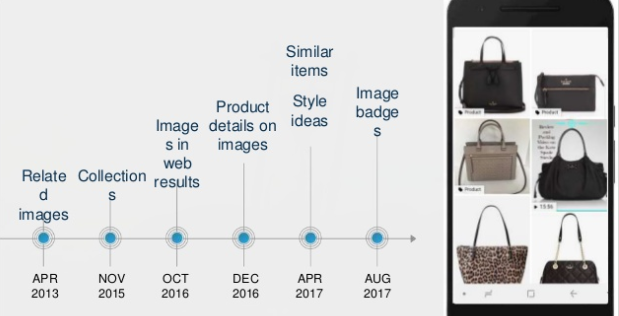
A brief history of visual search

                                         Source: Distilled.net

To understand how Google’s visual search engine could develop in the future, we need to step back in time to understand the progress they’ve made so far. In the last five years, Google has come a long way from being able to serve images that are mildly related to a search query. Now the algorithm is able to understand the context behind a query, so they can better serve image results that satisfy user intent. This has completely changed the retail landscape where image search was once only a source of inspiration. Google has enabled rich product results that attract those looking to buy through images too.

Made possible by Schema Markup, Google has taken the product page and bundled it inside an image. Product images now feature attributes such as pricing, availability, reviews and item descriptions, as well as including badges to encourage more users to click through to products from results.

Making the leap to lens

Following Pinterest’s launch of their visual discovery tool Lens, Google introduced their own ‘Lens’ equivalent at the I/O developer conference in 2017. It was later rolled out onto all Pixel phones as part of the Google Assistant, and more recently made available to all Android and iOS devices through the Google Photos app.

Right now, Google Lens isn’t geared towards retail. The main features are described as ‘saving information from business cards’, ‘recognizing landmarks’ and ‘looking up products by barcodes’. While this all sounds rather uninspiring for retailers, exciting times could soon be around the corner.

The launch of ASOS’s Style Match tool could be pivotal to this. ASOS is the first big UK retailer to invest significantly in this technology. As other retailers look to invest in a similar vein, Google will undoubtedly commercialize their own visual search offering to capitalize on a growing number of mobile users, inspired by image.

Preparing for an image-first future

Visual search is in its infancy, but we should prepare for a future where a search engine users’ first thought is image. Research by Moz in 2017 found that image search now makes up nearly 30% of all searches on Google, with image blocks in an estimated 11% of search listings.

Searching by text will remain the easiest way to access information for most. For retail, however, it doesn’t seem unrealistic to imagine a time when searching by image is more convenient than text. Visual searches will be favored by those that want to discover similar products, tailored to their own preferences.

If you’re inspired by an outfit on Instagram, the Google of the not-too-distant future might accurately display individual similar items from the outfit, with image results personalized by brand preference, availability, and budget.

Personalization is a challenge the ASOS visual tool intrinsically solves. Their users are already invested in ASOS – they have downloaded the app, they have purchased their products. This means that whenever a user searches by image, they’re going to see ASOS products, and probably like them. This is one of the biggest challenges facing Google, and ultimately why retailers like ASOS will influence the way personalized visual search evolves.

How to prepare?

To prepare for an image-first future, retailers need to adapt their websites to changing search behaviors. Here are four things retailers can do right now to get started:

  • Go mobile

Visual search is inherently mobile – we don’t take pictures on a desktop, so mobile should be at the forefront of a search strategy. Optimizing for image search in its current form should also prepare retailers for what’s to come.

Mobile is big news in 2018. Google looks set to roll out the mobile-first-index imminently, so retailers could face some challenges if they are not mobile-responsive. In the context of visual search, retailers need to be mobile because that’s where it happens. Images hosted on pages that are not mobile-friendly are less likely to show up in mobile image results.

  • Use structured data

Structured data is essential for rich product results to appear on images. This will still likely be the case as visual search expands on Google, so optimize now. There are four attributes that are required for a ‘product’ badge to appear in image results. These are:

  • Currency of the item (in three-letter ISO 4217 format).
  • Price of the item (as a number)
  • URL of the product
  • The name of the product
  • Think page speed

The rankings of the host URL of the image tend to correlate with how the images rank themselves. With mobile page speed becoming a ranking factor as of July, reducing image size is the easiest way to improve load time and satisfy that facet of the algorithm.

Rankings aside, improving page speed is also incredibly important for user experience. Google found that as page load time goes from one second to 10 seconds, the probability of a mobile user bouncing increases by 123%!

  • Make product images functional

Give Google the best chance possible to understand the contents of the product image. Images should be beautiful but functional. This means light backgrounds with the product center stage, as well as including only one product per image.

Image resolution and dimensions are important too. Google tends to exclude extremely large images, or images with unusual dimensions. If images are too wide and not tall enough, or too tall and not wide enough, there’ll likely be issues.

Conclusion

As the above suggests, it is never too early to start planning your digital strategy around visual search – especially in retail. Make the right start by making your site mobile-responsive, to give the best experience for your existing users. Then it’s time to review, refine and optimize your images, to unlock the vast potential the visual search market could have.


Andrew Charlton is Search Marketing Consultant at Silverbean


from SEO – Search Engine Watch https://ift.tt/2wh6dRD
via IFTTT

Google: Keep Same URLs When Replacing Old Content With New

When content becomes outdated, sometimes site owners remove the old page and replace it with a new one.  And they don’t always remember to use a redirect when doing so.  The question came up on Twitter about whether it is best to replace the content or redirect from the old page to the new one. […]

The post Google: Keep Same URLs When Replacing Old Content With New appeared first on The SEM Post.


from The SEM Post https://ift.tt/2KEWwzo
https://ift.tt/eA8V8J via IFTTT

Social Media Today